Jegan - A terminal JSON editor


( English / Japanese )
Features
-
Edit JSON in a terminal-based interactive UI
Supports not only JSON, but also JSONL and JSON wrapped in JavaScript assignments
(as used in X/Twitter archives) -
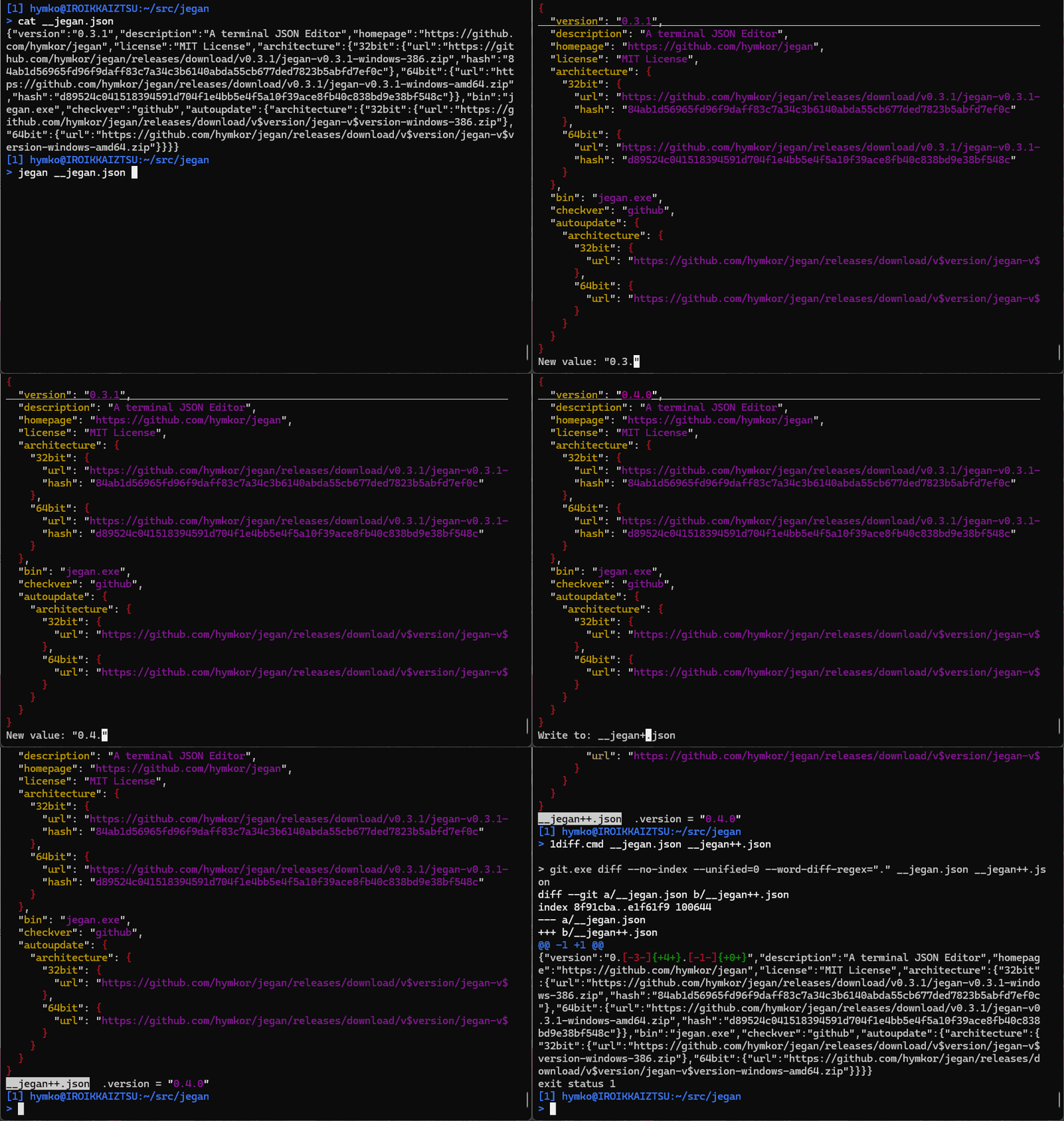
Minimal diffs on save
Unmodified parts of the document retain their original representation, including whitespace, indentation, key order, literal formatting (e.g. escape sequences), and even trailing non-JSON data.
Only the actual changes you make appear in diffs, making it safe to edit real-world data. -
vi-like navigation with Emacs-style editing
Navigate withj/kand scroll horizontally withh/l.
Useoto add items, andr/Rto enter edit mode, where Emacs-style key bindings are available. -
Works with files and standard input
Open JSON/JSONL files directly or process piped input seamlessly. -
Visual feedback for changes
Modified values are highlighted in bold for easy identification.
Install
Manual Installation
Download the binary package from Releases and extract the executable.
⚠️ Note: The macOS build is experimental and not yet tested. Please let us know if you encounter any issues!
Use eget installer (cross-platform)
brew install eget        # Unix-like systems
# or
scoop install eget       # Windows

cd (YOUR-BIN-DIRECTORY)
eget hymkor/jegan
Use scoop-installer (Windows only)
scoop install https://raw.githubusercontent.com/hymkor/jegan/master/jegan.json
or
scoop bucket add hymkor https://github.com/hymkor/scoop-bucket
scoop install jegan
Use "go install" (requires Go toolchain)
go install github.com/hymkor/jegan/cmd/jegan@latest
Note: go install places the executable in $HOME/go/bin or $GOPATH/bin, so you need to add this directory to your $PATH to run jegan.
Usage
jegan some.json
or
jegan < some.json
Key bindings
j,↓,Ctrl-N: Move to the next itemk,↑,Ctrl-P: Move to the previous iteml,→,Ctrl-F: Scroll the view to the righth,←,Ctrl-B: Scroll the view to the leftSpace,PageDown: Move to the next page of itemsb,PageUp: Move to the previous page of items<: Move to the first item>: Move to the last itemo: Insert a new item below the cursor.- For object items, enter both key and value.
- For array items, enter only the value.
- The key is used as entered (no quotes required).
- The value is interpreted as follows:
"..."→ string (escape sequences are interpreted)- Input that can be parsed as a number → number
null→ nulltrue/false→ boolean{}→ empty object[]→ empty array- Otherwise → string (used as-is)
- Ctrl+G cancels the current input
- Empty input is treated as an empty string (
""). - Duplicate keys in objects are not allowed.
r: Modify the item at the cursor (same input method aso)R: Modify the item at the cursor (explicitly specify the value type)d: Delete the item at the cursor
Non-empty objects and arrays cannot be deletedw: Save to fileq: Quit