Bine - A fast terminal hex editor
( English / Japanese )


A fast terminal hex editor for large files and pipelines.
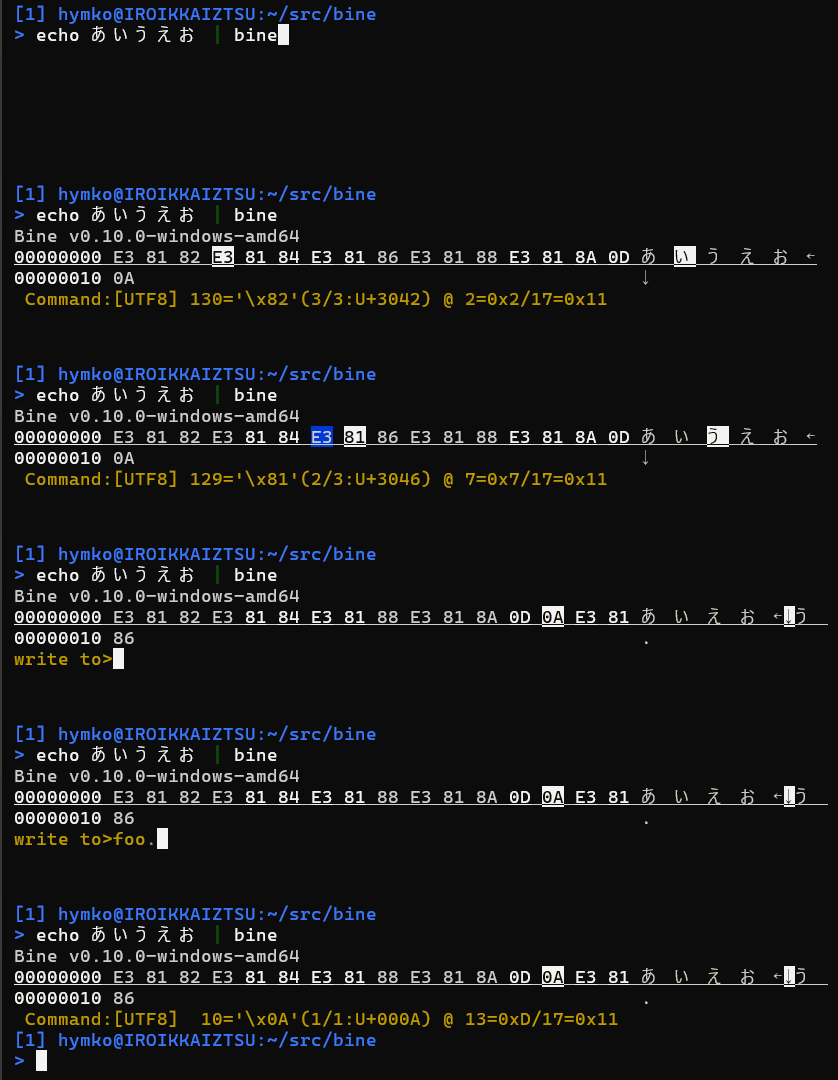
Key Features
-
Fast startup with asynchronous loading
The viewer launches instantly and loads data in the background, allowing immediate interaction even with large files. -
Split-view with hex and character representations
The screen is divided approximately 2:1 between hexadecimal and character views. Supported encodings include UTF-8, UTF-16 (LE/BE), and the current Windows code page. You can switch encoding on the fly with key commands. -
Vi-style navigation
Navigation keys follow the familiarvikeybindings (h,j,k,l, etc.), allowing smooth movement for experienced users.
(Note: File name input uses Emacs-style key bindings.) -
Supports files and standard input/output
binecan read binary data from files or standard input. Edited data can also be written to standard output, making it suitable for use in command pipelines. -
Smart decoding with character annotations
Multi-byte characters are visually grouped based on byte structure. Special code points such as BOMs and control characters (e.g., newlines) are annotated with readable names or symbols, making it easier to understand mixed binary/text content and debug encoding issues. -
Minimal screen usage
bineonly uses as many terminal lines as needed (1 line = 16 bytes), without occupying the full screen. This makes it easy to inspect or edit small binary data while still seeing the surrounding terminal output. -
Cross-platform
Written in Go,bineruns on both Windows and Linux. It should also build and work on other Unix-like systems.
Install
Manual installation
Download the binary package from Releases and extract the executable.
Use eget installer (cross-platform)
brew install eget        # Unix-like systems
# or
scoop install eget       # Windows

cd (YOUR-BIN-DIRECTORY)
eget hymkor/bine
Use scoop-installer (Windows only)
scoop install https://raw.githubusercontent.com/hymkor/bine/master/bine.json
or
scoop bucket add hymkor https://github.com/hymkor/scoop-bucket
scoop install bine
Use "go install" (requires Go toolchain)
go install github.com/hymkor/bine/cmd/bine@latest
Note: go install places the executable in $HOME/go/bin or $GOPATH/bin, so you need to add this directory to your $PATH to run bine.
Usage
$ bine [FILES...]
or
$ bine < in.bin > out.bin
Edit the data and save using - as the file name to write the edited data to standard output.
Key-binding
Cursor Movement
h,BACKSPACE,ARROW-LEFT,Ctrl-B
Move the cursor leftj,ARROW-DOWN,Ctrl-N
Move the cursor downk,ARROW-UP,Ctrl-P
Move the cursor upl,SPACE,ARROW-RIGHT,Ctrl-F
Move the cursor right0(zero),^,Ctrl-A
Move the cursor to the beginning of the current line (0is available in command mode only; see below)$,Ctrl-E
Move the cursor to the end of the current line<
Move the cursor to the beginning of the file>,G
Move the cursor to the end of the file (as far as data has been loaded at that point)&
Jump to a specified address
Tab
Move the cursor forward to the start of the next UTF-8 characterShift+Tab
Move the cursor backward to the start of the previous UTF-8 character
Editing
r
Edit the byte under the cursor (the current value is shown at the bottom of the screen; enter a new value via readline)i
Insert data to the left of the cursor (e.g.,0xFF,U+0000,"string")a(command mode only)
Insert data to the right of the cursor (e.g.,0xFF,U+0000,"string")I
Insert0x00to the left of the cursorA
Insert0x00to the right of the cursorx,DEL
Delete the byte under the cursor and save it to the internal bufferv
Start or end selection modey
Copy the selected region to the internal buffer. If nothing is selected, copies the byte under the cursord
Delete the selected region and copy it to the internal buffer. If nothing is selected, behaves the same asxp
Insert data from the internal buffer to the right of the cursorP
Insert data from the internal buffer to the left of the cursorR
Toggle direct edit mode. In this mode, pressing0–9ora–fdirectly overwrites the high nibble and then the low nibble of the byte under the cursor. PressRagain to return to command mode.
Search
/
Search forward (toward increasing addresses) from the current cursor position?
Search backward (toward decreasing addresses) from the current cursor position
After pressing / or ?, enter the search pattern in the input field at the bottom of the screen.
You can specify the pattern in the following formats:
U+XXXX
Unicode code point (e.g.U+3042)0xXX
Hexadecimal byte sequence (e.g.0xFE 0xFF)- Decimal numbers
Byte values in decimal (e.g.65 66 67) "string"oru"string"
Text string (UTF-8;uprefix is optional)
n
Repeat the previous search in the same directionN
Repeat the previous search in the opposite direction
Display
Meta-U
Change the character encoding to UTF-8 (default)Meta-A
Change the character encoding to ANSI (the current Windows code page)Meta-L
Change the character encoding to UTF-16LEMeta-B
Change the character encoding to UTF-16BE
Meta- means either pressing Alt together with the key, or pressing Esc followed by the key.
Miscellaneous
Ctrl-G
Cancel current mode (selection / direct edit) and return to view modeu
Undo the last change. Press repeatedly to undo further changes in sequence.w
Save changes to fileq
Quit. If there are unsaved changes, you will be prompted to save before exiting.
Changelog
Contributing
- Bug reports and improvement suggestions are welcome. You may write them in either English or Japanese.
- Please write comments in the code and commit messages in English.
- If a
developbranch exists at the time of your pull request, please target it. Otherwise,masteris fine. - Test code and documentation updates that accompany code changes are appreciated, but not required. They can be added later if necessary.